









Grant research, donor thank-yous, board meeting notes, the newsletter that’s somehow due again…nonprofit to-do lists never seem to get shorter. Gemini can take some of that off your plate, and if your team already works in Google Workspace, you may not need to pay a cent to start.
That said, Gemini for nonprofits comes in a few flavors, from free tools to discounted paid plans to a separate enterprise product. Knowing which one you need saves you from paying for features you won’t use (or missing ones you would).
Here’s what Google’s AI tools offer, what they cost, practical ways to use them, and how to connect them to Givebutter.
Key takeaways
- Gemini is free for eligible nonprofits. Google Workspace for Nonprofits provides free access to the Gemini app and Gemini Notebook (formerly NotebookLM), while paid plans offer more advanced AI features.
- Gemini can support everyday nonprofit operations. From researching grant opportunities to creating donor communications, Gemini helps your team work more efficiently.
- Paid Google Workspace plans bring Gemini into familiar tools. With discounted plans, your team can use Gemini directly in Gmail, Docs, and Meet to draft content, summarize emails, and capture meeting notes.
- Givebutter’s MCP server makes Gemini more useful for fundraising. Gemini can securely connect to your Givebutter account via MCP, through Gemini Spark or Gemini Enterprise, to analyze live donor, donation, and campaign data without manually uploading reports.
What is Gemini for nonprofits?
Gemini for Nonprofits refers to the AI tools Google makes available to eligible nonprofit organizations through its Google for Nonprofits program. It’s not a separate version of Gemini. Instead, nonprofits get free access to certain AI tools and discounts on paid Google Workspace plans that offer more advanced features.
For example, the free Google Workspace for Nonprofits plan includes access to the Gemini app and Gemini Notebook, Google’s AI-powered research assistant. If your organization needs more functionality, you can upgrade to a discounted paid Workspace plan that brings Gemini directly into apps like Gmail, Docs, Sheets, and Meet.
To get started, you’ll need to register for Google for Nonprofits and verify your organization’s eligibility. Once approved, you can activate Google Workspace, choose the plan that suits your team’s needs, and start using the available AI tools.
Is Gemini truly free for nonprofits?
Yes! Eligible nonprofits can use Gemini for free through Google Workspace for Nonprofits. The free plan gives your team access to the standalone Gemini app and Gemini Notebook, so they can use AI for everyday tasks like research and content creation.
However, if you want Gemini built directly into everyday tools like Gmail, Docs, and Meet, you’ll need a paid Workspace plan. Google offers generous nonprofit discounts on these upgrades, slashing standard subscription rates by 70% or more.
Here’s a breakdown of the Google Workspace pricing (as of October 2026):
🚨 Note: The free Google Workspace for Nonprofits and discounted Business Standard and Business Plus plans have a maximum limit of 2,000 users. But there’s no minimum or maximum limit for discounted Enterprise plans.
There’s also Gemini Enterprise, which is different from Google Workspace Enterprise. It’s a separate paid AI platform designed to connect with organizational data, external applications, and custom tools through integrations such as the Model Context Protocol (MCP).
Google for Nonprofits doesn’t list Gemini Enterprise among its nonprofit offers, so check Google’s Gemini Enterprise pricing before you commit.
Is the paid Google Workspace upgrade worth it? 💰
It depends on how your team works.
If you primarily use AI for research, drafting, and summarizing documents, the free Gemini app may be all you need. You can access those features without paying for an upgraded Workspace subscription.
However, if your staff spend most of their day working in Gmail and Docs, Business Standard and Business Plus plans let them use Gemini directly within those applications. These plans also enable AI-powered note-taking in Google Meet, which can be useful for teams that regularly hold meetings or collaborate remotely.
💡 For perspective: At the nonprofit Business Standard rate of $3.50 per user/month, a five-person team would pay $17.50/month ($210/year), while a 10-person team would pay $35/month ($420/year), both with a one-year commitment.
For teams that rely heavily on Google Workspace, that’s a relatively modest expense for making AI available directly within the tools they already use.
How nonprofits can use Gemini to raise more & do better
Between researching funding opportunities, keeping donors informed, and managing day-to-day operations, nonprofit teams have plenty of work that Gemini can help with.
Here are five practical ways to use Gemini, from features available on the free tier to more advanced tools in the paid plans.
1. Research grant opportunities with Gemini Deep Research 🔎
Finding grants is one thing. Figuring out which opportunities your nonprofit qualifies for, what funders expect, and when applications are due is another.
Gemini’s Deep Research feature can help with both. Give it details about your nonprofit, its mission, and the funding you’re looking for, and Gemini will search the web, analyze relevant sources, and produce a research report with links you can use to verify its findings.

You can also ask it to compare grant opportunities against specific criteria, so your team can prioritize applications instead of chasing every available grant. Some teams also pair Gemini with Perplexity for cited nonprofit research to cross-check funder details.

2. Turn program reports into donor-ready content with Gemini Notebook 📄
Your nonprofit probably has plenty of useful information buried in program sheets, impact reports, and internal documents. Gemini Notebook helps you turn that information into content donors can actually understand.
Simply upload your documents into a notebook, then ask questions or request summaries based on those materials. Unlike a general AI chatbot, Gemini Notebook grounds its answers in your uploaded sources and provides citations, making it easier to check where specific figures and claims came from.
3. Create custom Gems for repetitive tasks 💎
If your team frequently gives Gemini the same instructions, you can save yourself the repetition by creating a custom Gem.
Gems are personalized versions of Gemini that follow instructions you define in advance. You can create one to review grant applications, edit newsletters, or prepare volunteer communications. You can also upload reference documents, such as your organization’s style guide, so the Gem has additional context.
For example, you could create a “Grant Proposal Reviewer” Gem that checks every draft against the same standards before your team submits it.
Once saved, you can reuse that Gem whenever another application needs reviewing.
4. Draft emails & documents faster with Gemini in Gmail & Docs ✍️
Available on paid Google Workspace plans.
If your team works primarily in Gmail and Google Docs, upgrading to a paid plan gives you access to Gemini without constantly switching between applications.
In Gmail, you can use “Help me write” to draft emails, adjust their tone, or shorten lengthy messages. In Docs, Gemini can generate first drafts, expand outlines, and rewrite existing content.
Review the message, make any necessary changes, and send it directly from Gmail.
5. Capture meeting notes automatically with Google Meet 📝
Available on paid Google Workspace plans.
Keeping track of everything discussed during board meetings, fundraising planning sessions, or volunteer check-ins can be difficult, especially when you’re also trying to participate.
With Gemini’s “Take notes for me” feature in Google Meet, you can automatically capture meeting discussions and generate organized notes in Google Docs. These include key discussion points, decisions, and action items, so your team has a record to refer to afterward.
Unlike the other features, you don’t need to enter a prompt to start taking notes. Simply enable “Take notes for me” in Meet. Once the meeting ends, you can open the generated document and use Gemini in Docs to organize the follow-up work.
Bring your fundraising data into Gemini with Givebutter
Gemini can help you research fundraising strategies, spot trends, and make recommendations. But without access to your nonprofit’s data, it can’t tell you much about your actual fundraising performance. To get those insights, you’d have to manually gather donation figures, donor records, and campaign results for Gemini to analyze.
Connecting Gemini to Givebutter removes that extra work. The connection uses the Model Context Protocol (MCP), an open standard that allows AI assistants to communicate with external applications and retrieve information directly from them. It works the same way nonprofits connect other AI tools, like using ChatGPT with your fundraising data or connecting Claude to your donor data.
This way, Gemini can access relevant information directly from your Givebutter account whenever you ask a question about your fundraising activity.
How to connect Givebutter to Gemini 🔗
There are two ways to connect Gemini to Givebutter: Gemini Spark for individual users, and Gemini Enterprise for teams. Both use Givebutter’s hosted MCP server. The Gemini tools included in the free Google Workspace for Nonprofits plan can’t add custom connections, so you’ll need one of these options.
Option 1: Gemini Spark
Gemini Spark is available with a Google AI Pro or Google AI Ultra plan on a personal Google account. Custom apps aren’t available on work or school accounts, including Workspace accounts, yet.
- Open Connected Apps in Gemini. On the web, go to gemini.google.com/apps. You can only add custom apps on the web, not in the mobile app. Make sure Keep Activity is turned on.
- Add Givebutter as a custom app. Under “Custom apps for Spark,” click Add a custom app and enter https://mcp.givebutter.com/mcp.
- Sign in and approve access. Click Next, sign in to Givebutter, choose the account you want to connect, and approve access.
- Start asking questions. In the Gemini sidebar, click Switch to Spark. Type @ in the text box and select Givebutter.
For troubleshooting and tips on managing the connection, see Givebutter’s Gemini Spark setup guide.
Option 2: Gemini Enterprise
If your team uses Gemini Enterprise, a team administrator will need to set up the connection:
- Add an MCP server. In Gemini Enterprise, go to Settings & help → Manage team → Connected apps and select Add MCP Server.
- Add Givebutter’s MCP server. Name the connection “Givebutter” and enter https://mcp.givebutter.com/mcp as the server URL. Your administrator will also need to configure the OAuth authentication details required by Gemini Enterprise.
- Enable and authorize the connection. New connections are turned off by default, so enable the connector, then sign in to Givebutter, choose your account, and approve access.
For more details, see Google’s Gemini Enterprise setup instructions.
Givebutter hosts the MCP server, so you don’t need to install or maintain one yourself. Technical teams may also be able to connect through Gemini CLI, which supports MCP servers.
Once connected, Gemini can retrieve live information about your contacts, donations, recurring plans, pledges, campaigns, fundraising teams, events, and auctions, without requiring you to upload reports or manually transfer data.
See how nonprofits use Givebutter’s AI connectors alongside the other tools in their workflow:
You can then use direct prompts like:
- “Pull our monthly donation totals and average gift amounts from Givebutter for 2025 and 2026. Then research the latest US charitable giving trends from sources like the Fundraising Effectiveness Project. Compare our performance with these trends and recommend three priorities for our next campaign, citing your sources.”
- “Review our recurring giving data in Givebutter, including active and lapsed plans over the past six months. Research current best practices for recurring donor retention and suggest three ways we can improve our program based on our actual donor activity.”
- “Show me how each peer-to-peer team in our spring campaign is tracking against its goal, along with any open pledges and matching gift funds. Then suggest which teams need extra support and draft a short encouragement message for each team captain.”
- “Analyze our fundraising events from the past two years, including donation revenue, ticket sales, and auction revenue. Research current nonprofit fundraising event trends and recommend three ways to improve our next event, using our previous results to support your suggestions.”
What about your donor data? 🔒
Givebutter doesn’t use your or your donors’ personal data to train large language models.
Givebutter’s AI connector is read-only, which means Gemini can retrieve and analyze information from your connected account, but it can’t create, edit, or delete donor records or make changes to campaigns. AI doesn’t authorize payments, release payouts, or move money.
The connector can only see what the person who authorized it can already see. Banking data is off limits, and payment card numbers and Givebutter passwords are never shared. Each connection is limited to one Givebutter account, and you approve access during authorization. Account administrators can also disconnect individual connectors or turn off AI connectors for the whole account under Settings → AI.
How your data is handled once it reaches Gemini depends on your Google account settings and Google’s policies. That matters for Gemini Spark, which uses a personal Google account. Business and organization plans typically don’t use customer data for model training, while personal or free plans may unless training is turned off. Review your AI provider’s data controls before connecting a personal account.
For Gemini Enterprise, Google states that customer data, including prompts and responses, isn’t used to train its AI models. This means your nonprofit’s fundraising data won’t be used to improve Google’s AI models for other users.
💡 Pro tip: Even with these protections, it’s important to review your organization’s data-sharing policies before giving an AI assistant access to donor information. Givebutter’s approach to AI is designed to align with Fundraising.AI’s framework for responsible AI, built for the fundraising sector around privacy, accountability, and transparency.
Make Gemini more powerful for fundraising with Givebutter
Gemini can help your nonprofit save time on research, content creation, and everyday tasks. But when it comes to fundraising decisions, recommendations based on your actual donor and campaign data are far more useful than generic advice.
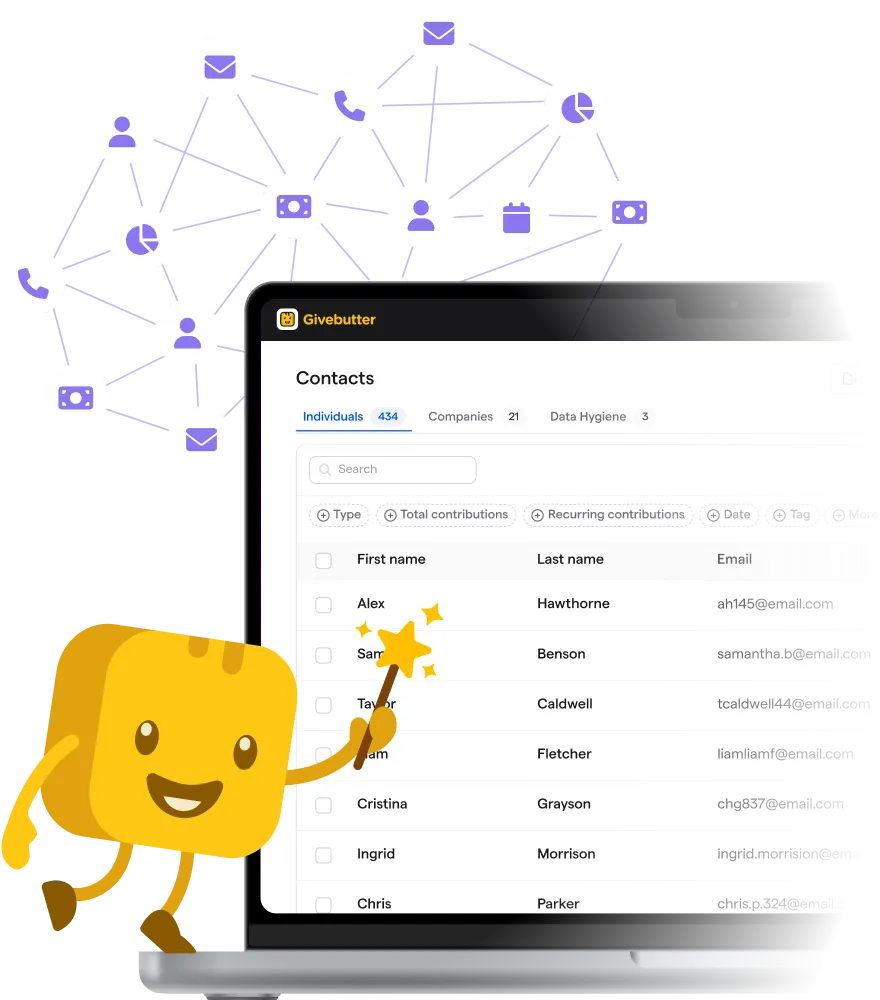
Givebutter makes that possible. Our core fundraising and donor management tools are free, so you can manage campaigns, donations, and donor relationships in one place. And with Givebutter Magic, AI built for nonprofit work, you can connect your fundraising data to Gemini through Gemini Spark or Gemini Enterprise, ask detailed questions about your performance, and use those insights to plan more effective campaigns.
Give your AI tools a fundraising superpower
Ready to get started? Sign up for Givebutter for free and start making more informed fundraising decisions.
Gemini for nonprofits FAQs
Is Gemini free for nonprofits? 🆓
Yes. Eligible nonprofits can access the Gemini app and Gemini Notebook through the free Google Workspace for Nonprofits plan. This includes AI tools for research, drafting, summarizing, and other everyday tasks.
However, if you want Gemini integrated into apps like Gmail and Docs, you’ll need a paid Workspace plan. Gemini Enterprise is also available as a separate paid product.
Does Google Workspace for Nonprofits include Gemini in Gmail & Docs? 📧
Not on the free plan. While Google Workspace for Nonprofits includes Gmail and Docs, it doesn’t include Gemini’s built-in AI features within those applications.
To access tools like “Help me write,” email summaries, and Gemini’s side panel in Docs, you’ll need to upgrade to a paid Workspace plan, such as Business Standard, which Google offers at a nonprofit discount.
Is Gemini safe to use with donor data? 🛡️
It can be, with the right setup. Use an organizational account with the appropriate protections where you can. Google Workspace for Nonprofits includes enterprise-grade data protections, and Google states that it doesn’t use your content to train its generative AI models outside your organization without permission.
Still, you should limit access to sensitive donor information and review your nonprofit’s data privacy policies before sharing records with Gemini.
What’s the difference between Gemini & Gemini Notebook? 📚
Gemini is a general-purpose AI assistant for writing, research, planning, and answering questions. Gemini Notebook, however, focuses on analyzing information from sources you provide, such as PDFs, program reports, and Google Docs. It also provides citations so you can verify its answers against your original documents.
Both are useful, but Gemini Notebook is particularly helpful for document-heavy research.
Can Gemini connect to Givebutter? 🔌
Yes. Gemini can connect to your Givebutter account via MCP, through Gemini Spark or Gemini Enterprise. Gemini Spark needs a Google AI Pro or Ultra plan on a personal Google account, while Gemini Enterprise needs a team administrator to set up the connection. The Gemini tools in the free Google Workspace for Nonprofits plan can’t add custom connections.
Once connected and authorized, Gemini can retrieve fundraising information from your account to answer questions and analyze performance.
The connection is read-only, so Gemini can’t modify donor records. AI doesn’t authorize payments, release payouts, or move money.
Share this article